
Typing Tibetan on Windows
A small free program, open source, that works in every application: Word, LibreOffice, your email, your browser.
How to Type Tibetan on Windows – Free Wylie Keyboard, Step by Step - watch on YouTube
- Download the keyboard below and open the file.
- Your browser and Windows will warn you about an unfamiliar program. Choose Keep, then Keep anyway; then More info, then Run anyway.
- Install it. Ticking Start automatically and Desktop shortcut is a good idea.
- Its icon, a Tibetan ཨོཾ, appears among the small icons at the bottom right of the screen, sometimes hidden behind the ^ arrow. Drag it out so that it stays in view.
- Hold Shift and press Space twice to switch Tibetan on: the icon turns green. Do the same to switch it off.
Download the keyboard for Windows
For a Windows computer with an ARM processor, such as a Surface Pro X, download this version instead. Every combination the keyboard accepts (on GitHub, opens another site). The keyboard is the free, open source Tibetan EWTS Keyboard by bkntr.
- Letters that should sit side by side but would stack, like the g and y of གཡས, are kept apart with a dot: g.yas.
- Stacks that are not standard Tibetan, as in Sanskrit, are joined with a +. For instance: pad+ma gives པདྨ
A Tibetan font
The keyboard types the letters; a font draws them. Your computer already has one, but Jomolhari is clearer, and free. Download the font, open the file, and press Install.
Free to use and to share, under the SIL Open Font License. Read the licence. Jomolhari is by Chris Fynn; this copy comes from Google Fonts.
Guide and videos by Frère Jérémy, from the classical Tibetan course organised by Padmakara and led by Wulstan Fletcher.
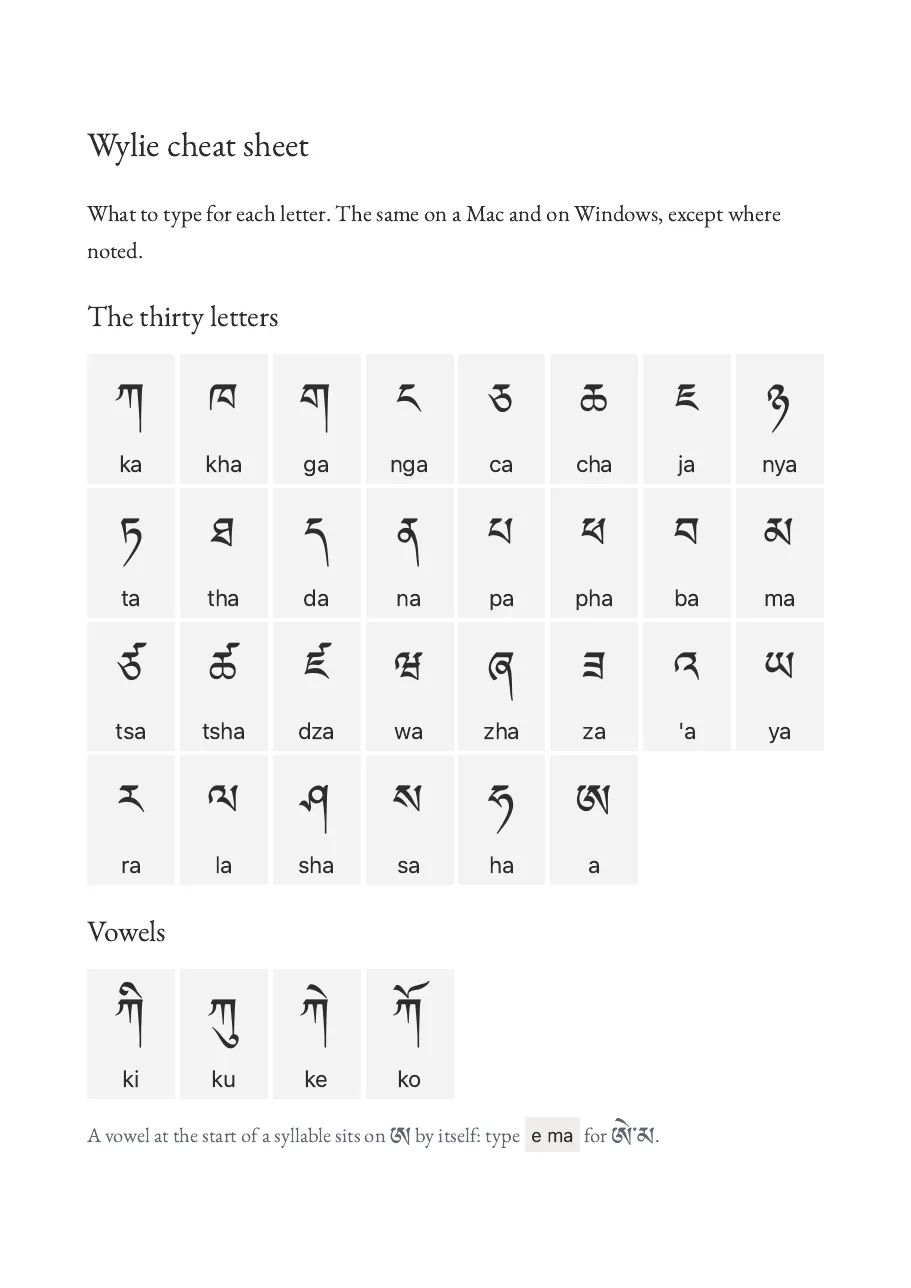
Wylie cheat sheet
What to type for each letter. The same on a Mac and on Windows, except where noted. Printable PDF from the course.
Download the cheat sheet (PDF)
To practise, paste your Wylie into the Lotsawa House Wylie converter: nothing needs installing.
Looking for other keyboards or converters? See all the ways to type Tibetan.