
Typing Tibetan on a Mac
Nothing to install: the Tibetan keyboard is part of macOS.
How to Type Tibetan on a Mac – Built-in Wylie Keyboard + Tibetan Fonts - watch on YouTube
- Open System Settings, then Keyboard. Under Text Input, choose Input Sources, then Edit.
- Press +, search for Tibetan, choose Tibetan – Wylie and press Add.
- Switch keyboards with the globe key, bottom left of your keyboard, or from the keyboard menu at the top of the screen.
- Type: sangs rgyas becomes སངས་རྒྱས། Switch back before you answer an email!
- Lost? From the keyboard menu, choose Show Keyboard Viewer: it shows which key gives which letter.
- Stacks that are not standard Tibetan, as in Sanskrit, need the stacking key between the letters: hold Shift and press the key just left of Delete, whatever is printed on it (on an English keyboard it is the + key). For instance: pad, then the stacking key, then ma gives པདྨ
On a French (AZERTY) keyboard
The Mac's Tibetan keyboard follows the English key positions, not the letters printed on your keys.
 Tibetan – Wylie (AZERTY)The simplest: install this free keyboard. It is Apple's Tibetan – Wylie with every key following the letters printed on a French keyboard, so nothing below applies.Download and install guide (in French)
Or keep Apple's keyboard, and remember that a few keys differ:
| To type | press the key marked |
|---|---|
| a | Q |
| q | A |
| z | W |
| w | Z |
| m | , |
| ' | ù |
| . | : |
| / | ! |
Every other letter is where you expect it. In doubt, Show Keyboard Viewer in the keyboard menu shows each key. The Windows keyboard follows the active layout, AZERTY included.
A Tibetan font
The keyboard types the letters; a font draws them. Your computer already has one, but Jomolhari is clearer, and free. Download the font, open the file, and press Install in the window that opens.
Free to use and to share, under the SIL Open Font License. Read the licence. Jomolhari is by Chris Fynn; this copy comes from Google Fonts.
Guide and videos by Frère Jérémy, from the classical Tibetan course organised by Padmakara and led by Wulstan Fletcher.
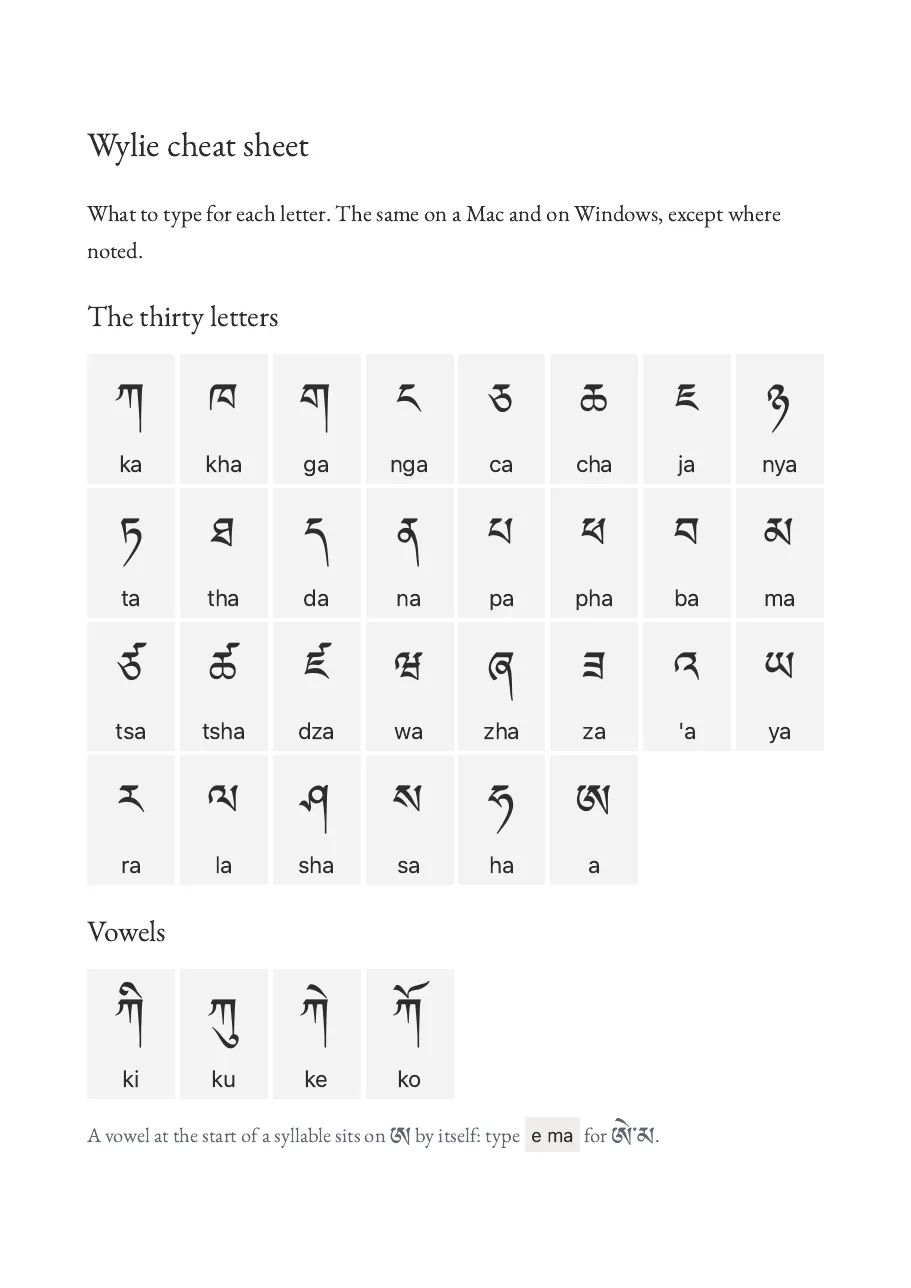
Wylie cheat sheet
What to type for each letter. The same on a Mac and on Windows, except where noted. Printable PDF from the course.
Download the cheat sheet (PDF)
To practise, paste your Wylie into the Lotsawa House Wylie converter: nothing needs installing.
Looking for other keyboards or converters? See all the ways to type Tibetan.